
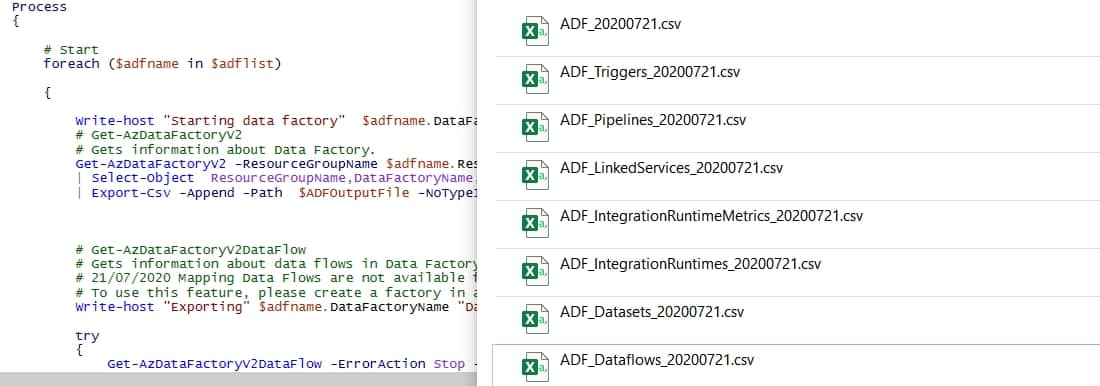
Documenting Azure data factory is important for any project, development or application. It’s also extremely useful for operations. With the rise of cloud services and the introduction of agile practices, documentation needs to be a live entity and an ongoing activity. Creating documentation is no longer a one-time activity because it becomes outdated quickly.
Today, we’ll export documentation automatically for Azure Data Factory version 2 using PowerShell cmdlets and taking advantage of the Az modules.
Table of Contents
A few tips when documenting Azure Data Factory objects:
- Define naming convention
- Re-use objects
- Document
The following script captures information for an Azure subscription. Some important columns like Descriptions and Annotations are not yet available in the cmdlets for all objects.
Download the script
The script is available through the following link:
https://github.com/techtalkcorner/AzDataFactory/tree/master/Scripts/PowerShell
Pre-requirements
Before you can run the script, you need to download the Az Module and log into the Azure tenant.
Install Az Module
Install-Module -Name Az Connect to Azure
Connect-AzAccount Execute script
The script only has 1 parameter (TenantId). To execute the script, run the following command:
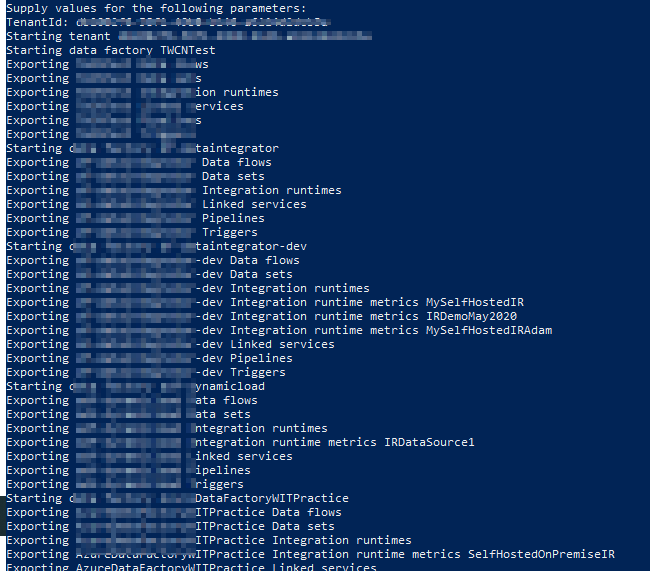
.\ExportAzureDataFactoryDocumentation.ps1 -TenantId XXXXX-XXXXX-XXXXX-XXXXX -OutputFolder "C:\SampleFolder\"Then, the output in the console will look similar to the following one.
Information
The following files will be generated by using the exported data in this script.
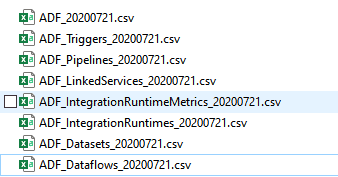
And the information exported is:
Azure Data Factories
- Resource Group Name
- Data Factory Name
- Location
- Tags (for example: [Environment | Test] [BusinessUnit | IT])
Azure Data Flows
- Resource Group Name
- Data Factory Name
- Data Flow Name
- Data Flow Type
Azure Pipelines
- Resource Group Name
- Data Factory Name
- Pipeline Name
- Parameters
- Activities using [Name | Type | Description], for example: [MoveData | CopyActivity | Description])
Azure Triggers
- Resource Group Name
- Data Factory Name
- Trigger Name
- Trigger Type
- Trigger Status
Azure Dataset
- Resource Group Name
- Data Factory Name
- Dataset Name
- Dataset Type
Azure Integration Runtimes
- Resource Group Name
- Data Factory Name
- Integration Runtime Name
- Type
- Description
Azure Integration Runtime Metrics
(Integration Runtime needs to be online to capture further information)
- Resource Group Name
- Data Factory Name
- Nodes
Azure Integration Runtime Nodes
(Integration Runtime needs to be online to capture further information)
- Resource Group Name
- Data Factory Name
- Integration Runtime Name
- Node Name
- Machine Name
- Status
- Version Status
- Version
- Ip Address
Summary
To sum up, today we used exported documentation automatically. There are still some limitations in the cmdlets like missing Descriptions and Annotation properties from all the objects.
Final Thoughts
We certainly can’t expect to have specific resources allocated just for updating documentation. We have to take advantage of two important things to overcome this situation:
- Create documentation as you go, follow best practices and add comments and descriptions to everything.
- Take advantage of the APIs available for each one of the services in Azure needed to export the documentation automatically. You can now extend the script to import information into a database or a wiki by scheduling it on a daily basis.
What’s Next?
In upcoming posts, I’ll continue to explore some of the great features and services available in data analytics space within Azure services.
Dave O Donnell
thanks a million for this script David, its really useful
David Alzamendi Author
I am glad it helped!
W.Davis
Thanks David, I tried it on my own subscription which seemed to work really well. However within organisation we have many ADF instances within a subscription relating to different teams. If I wanted to get this documentation for a particular ADF instance do you know if that is possible?
W.Davis
Managed to work it out :). Thanks get tool!
AD
Thanks, this was really useful. Do you know how I could add the details of the schedules, and the links to show what Pipelines are called by which Triggers?