


Microsoft Fabric is quickly growing into a consistent interface that spans data engineering, analytics, and orchestration. One of the newest and most powerful features of its Continuous Integration and Continuous Deployment (CI/CD) workflow is the Variable Library. In this guide, you’ll learn how to become a master of the Variable Library in Microsoft Fabric CI/CD.
You’ll learn to set the Variable Library up correctly and use it to easily manage dynamic configurations across your development and production environments.
Table of Contents
What Is the Variable Library in Microsoft Fabric?
When working with Microsoft Fabric, there’s the Variable Library that pools all the environment-specific information. Think connection strings, database names, lakehouse IDs, and workspace IDs, all in one place. Its purpose is to make the CI/CD process a little less tedious by collecting all these variables in one place rather than having them scattered throughout pipelines as direct, hardcoded values.
In basic terms, instead of manually modifying pipelines for each environment, you can define variables once in the library and then dynamically reference them when deploying.
Significantly reducing human error, ensuring consistency, and enhancing reusability in pipeline construction are all crucial for delivering modern software. Ensuring these attributes in software delivery allows teams to work more effectively.
Key Features
- Variables: Each variable has a name, type, default value, and optional notes.
- Default Values: Used unless overridden by a specific value set.
- Alternative Value Sets: Define different values for variables, allowing customization per deployment stage.
- Active Value Set: Determines the values used by consumer items. Only one can be active per workspace at a time.
Key Benefits of Using the Variable Library
Centralized Configuration
A system can be configured uniformly from a central point, allowing for consolidated management and settings application. Your values that are environment-specific (like connection strings, workspace IDs, and file paths) can all be found in one place: the Variable Library. Storing them there not only makes it easier and cleaner to manage such values, but it also means that if you need to update something, you only have to do it in one place.
Seamless CI/CD Integration
By using variable sets for different stages like development, testing, and production, you can switch configurations instantly. This eliminates the need to edit pipelines when moving code between environments manually.
Improved Maintainability
When coding, you can avoid the hassle of hardcoding and manual changes to different environments by injecting variables at runtime. This is where a pipeline template becomes environment-agnostic.
Then, you can take the same pipeline template, run it in different environments, and it will automatically adapt to the settings in each. As a result, there’s no need to create separate versions of the same template.
Flexibility and Scalability
Back multiple settings and setups with minimal effort. You can easily try out different situations by varying values in the library, without changing the basic pipeline code. This makes the process of experimentation and debugging much quicker.
Supported Data Types
The Variable Library supports strings, integers, and booleans, giving you flexibility in how you store and use values in pipelines.
Variable Library in Microsoft Fabric Capabilities for Dev to Prod Deployment
Consider this scenario. You are loading data from an AdventureWorks SQL Server database into a Lakehouse using a Microsoft Fabric pipeline. You have two environments: Development and Production. Each has its own:
- SQL connection string
- Database name
- Lakehouse ID
- Workspace ID
What if you weren’t using Variable Libraries? You’d be updating those values by hand every time you moved between environments. It’s the kind of work that is prone to error and inefficient. If you were using Variable Libraries, you’d set all these values once and reference them dynamically in your pipeline. During deployment, the active variable set makes sure the right values are in use.
Step-by-Step: How to Use Variable Library in Microsoft Fabric CI/CD
- Enable Variable Libraries in Admin Settings
Before creating variable libraries, go to Admin Portal > Settings and enable the option:
“Allow users to create and manage variable libraries.”
- Create Your Variable Library
Navigate to your development workspace and create a new item → Variable Library.
Let’s call it: data_movement_variables.
Within the library, create Variable Sets:
- Default (optional)
- Development
- Production
Each set should contain variables like:
- source_sql_connection_id
- source_db_name
- destination_lakehouse_id
- destination_workspace_id
- environment_name (optional for logging purposes)
Tip: Use strings for all values. They perform effectively in pipelines and reduce data type conflicts.
- Retrieve Variable Values
You’ll need:
- SQL Connection ID: Found in pipeline JSON (View → Edit JSON)
- Lakehouse ID and Workspace ID: Found in Fabric’s URL or item properties
Copy these values and input them under the appropriate variable sets (Dev or Prod).
- Map Variables to Pipeline Parameters
Unfortunately, you cannot directly bind a pipeline to a variable library. Instead, follow these steps:
Step 1: Create pipeline parameters matching your variable names.
Step 2: Use variable library values to assign to those parameters dynamically.
For example:
plaintext
CopyEdit
Parameter: source_sql_connection_id
Value: @{variableLibrary(‘data_movement_variables’).get(‘source_sql_connection_id’)}
Use the dynamic content editor to reference the values directly from the Variable Library.
- Update Copy Activities to Use Variables
Go into your Copy Data activity and change:
- Source: Set the connection ID and database name dynamically
- Sink (Destination): Set the lakehouse ID and workspace ID dynamically
Your pipeline will behave differently depending on the environment it’s deployed to, without changing the pipeline code.
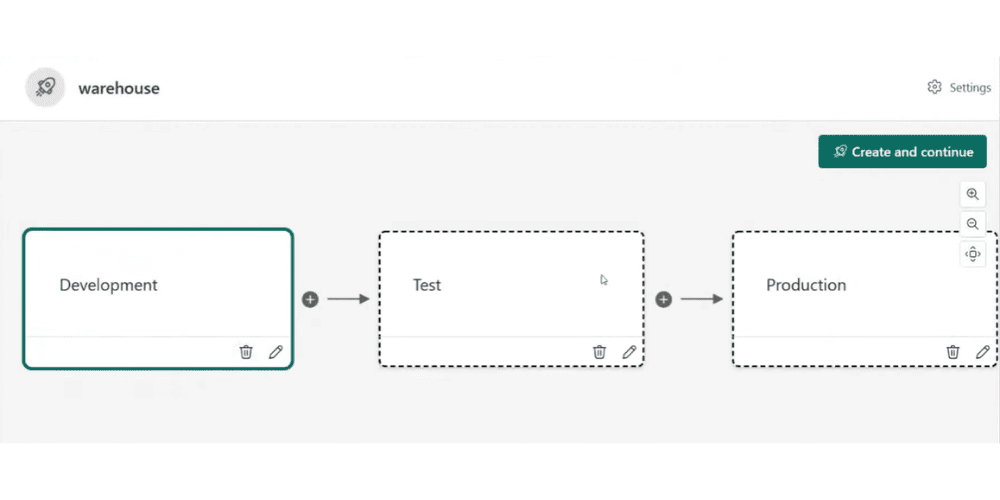
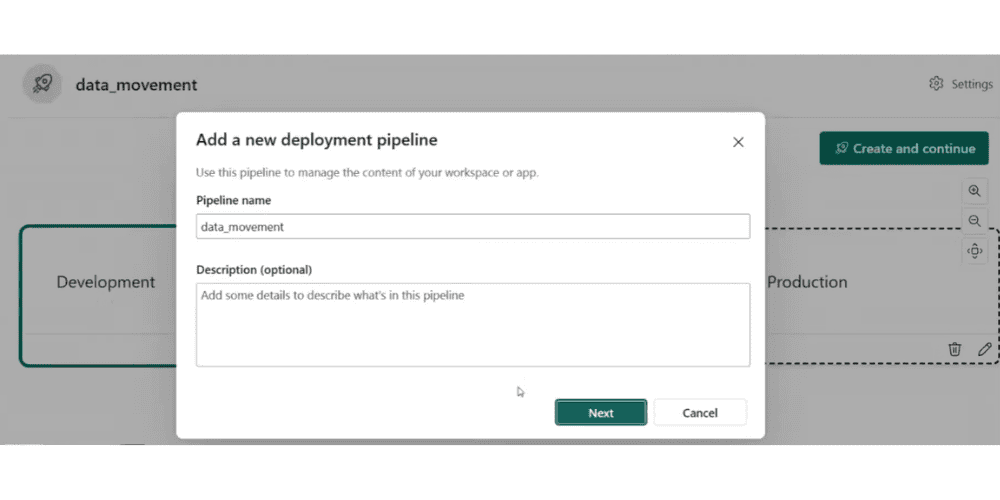
- Deploy Using Fabric Deployment Pipelines
Go to Deployment Pipelines and create two:
- One for Warehouse
- One for Data Movement
Define Dev → Prod flow
Run the comparison → Deploy to Production
Important: In the Production Workspace, manually set the active variable set in the Variable Library to “Production.”
Troubleshooting Tips
- If your pipeline fails, check variable values first—workspace or lakehouse IDs are often incorrect.
- Confirm that the settings for creating tables (for example, whether to append to existing tables or overwrite them) are configured correctly.
- Validate that input parameters reflect the expected values during execution.
- Debug runtime values by using the input log view.
Limitations to Know About the Variable Library in Microsoft Fabric (As of Public Preview)
- Pipelines and certain shortcuts are the only things you get with Variable Libraries. They do not fully support all of the objects in Fabric.
- Linking variables to pipeline parameters must be done manually.
- Only string variables are consistently reliable.
- Pipelines and variable libraries don’t yet have a direct UI connection.
Best Practices
- Use distinct workspaces for development and production.
- Use consistent variable naming across all contexts. When using a variable to refer to an object, its name should unambiguously refer to that object, no matter where the variable is used in the code.
- Refrain from embedding fixed values in the code. Instead, use binding with dynamic variables.
- Maintain a master file containing all variable sets and their corresponding values.
- Test both Dev and Prod deployments regularly.
Conclusion
The Variable Library in Microsoft Fabric is a game-changer for teams looking to streamline their CI/CD workflows. It refines the management of configuration and connection values across environments and eliminates the need for manual edits. Furthermore, it introduces a level of DevOps maturity previously missing from data engineering workflows.
By mastering the use of variable libraries, you’ll reduce errors, simplify deployments, and build robust, scalable pipelines that adapt well across development and production.
Frequently Asked Questions
Question: Can I directly bind a pipeline to the Variable Library in Microsoft Fabric CI/CD?
Answer: Not yet. Currently, you must create pipeline parameters and then map them to values from the Variable Library. Full UI-based binding may come in future updates.
Question: What data types are supported?
Answer: The Variable Library supports strings, integers, and booleans. However, strings are the most widely used and recommended for consistent behavior in pipelines.
Question: What happens if I forget to set the active variable in Production?
Answer: If the wrong variable set is active, your pipeline may point to incorrect resources, such as a development lakehouse instead of production. Always verify the active set after deployment.